
letsview.app
Full LetsView feature breakdown
This page translates common store and community descriptions into a structured view of what LetsView is built to deliver for wireless display, collaboration, and capture workflows.
Screenshots
Tall portrait captures of the LetsView experience. Click any image for a full size view.
Additional screenshots
Wider interface stills in AVIF format.
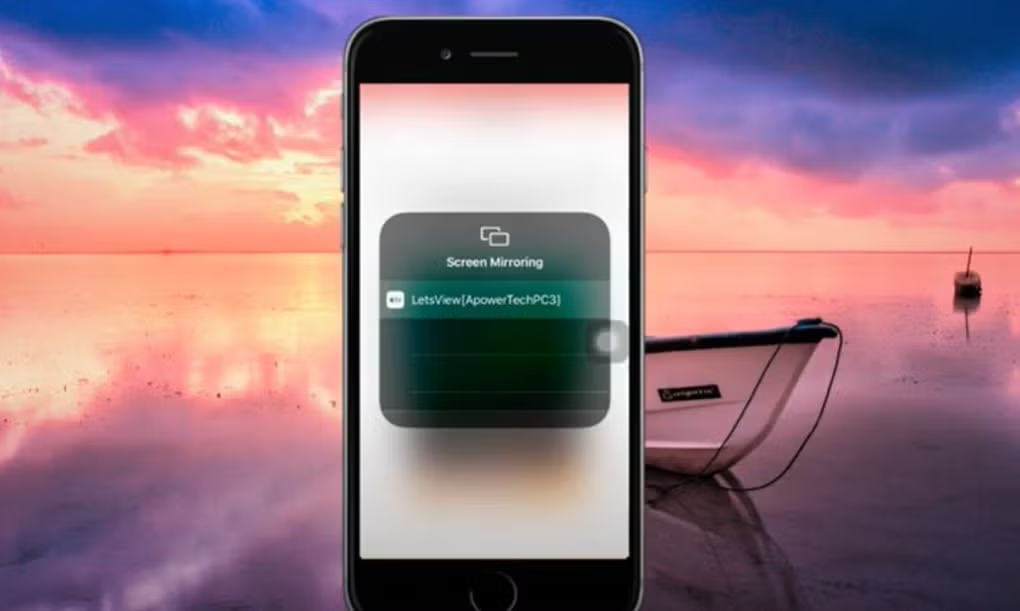
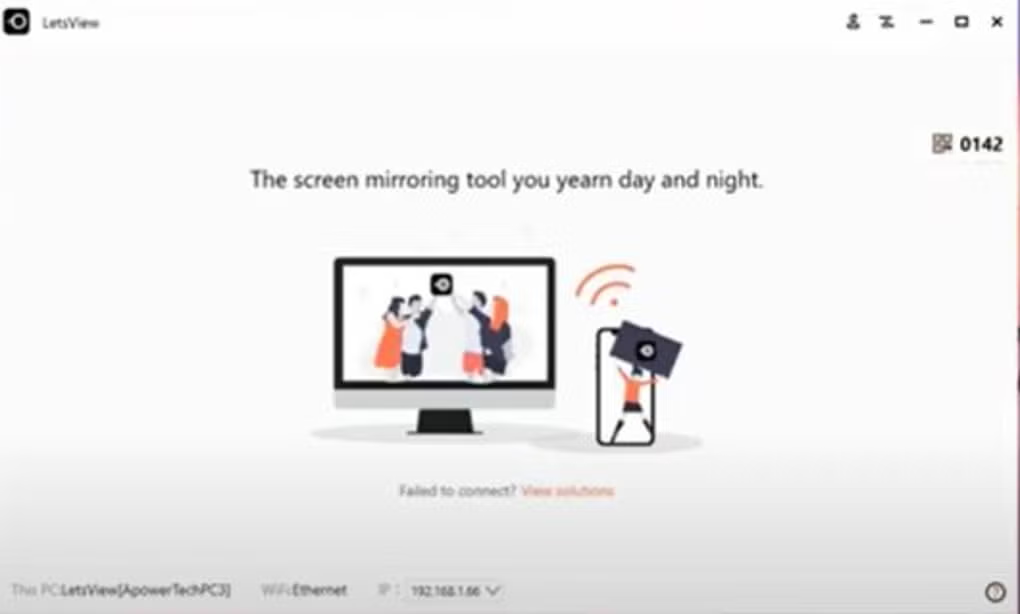

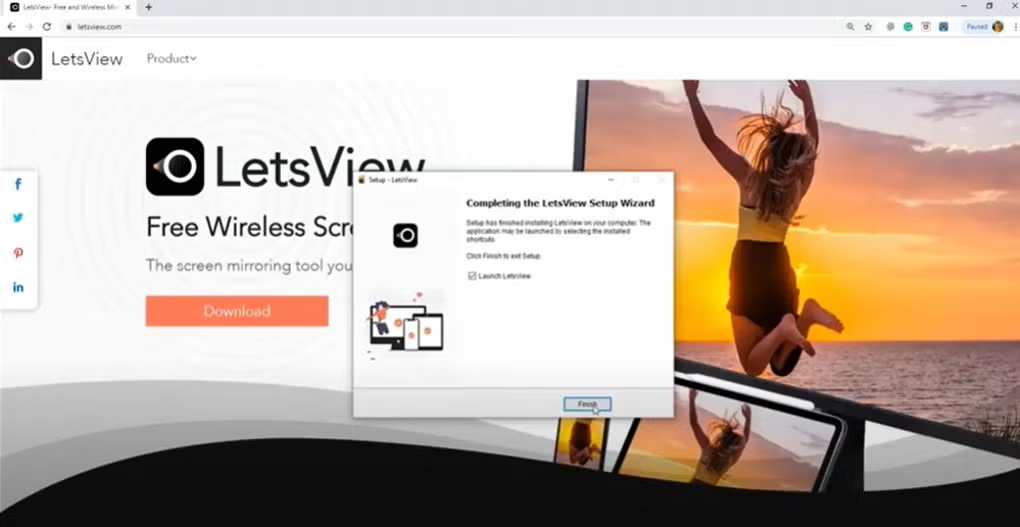
All platform wireless display
LetsView centers on mirroring a phone or tablet to a computer monitor, television class panel, or projector without tethering cables when the network and hardware path supports it.
The Microsoft Store description highlights casting smart device screens to PC and TV class targets, which matches how educators, sales engineers, and mobile developers usually pitch mirroring utilities.
- Discovery flows that align with AirPlay style and Miracast style expectations on supported stacks.
- Orientation changes on the handset reflected on the receiving display with reasonable latency for static slides and UI walkthroughs.
- Audio routing behavior depends on OS policies; verify on your hardware before a live performance.
Remote cast when LAN alignment fails
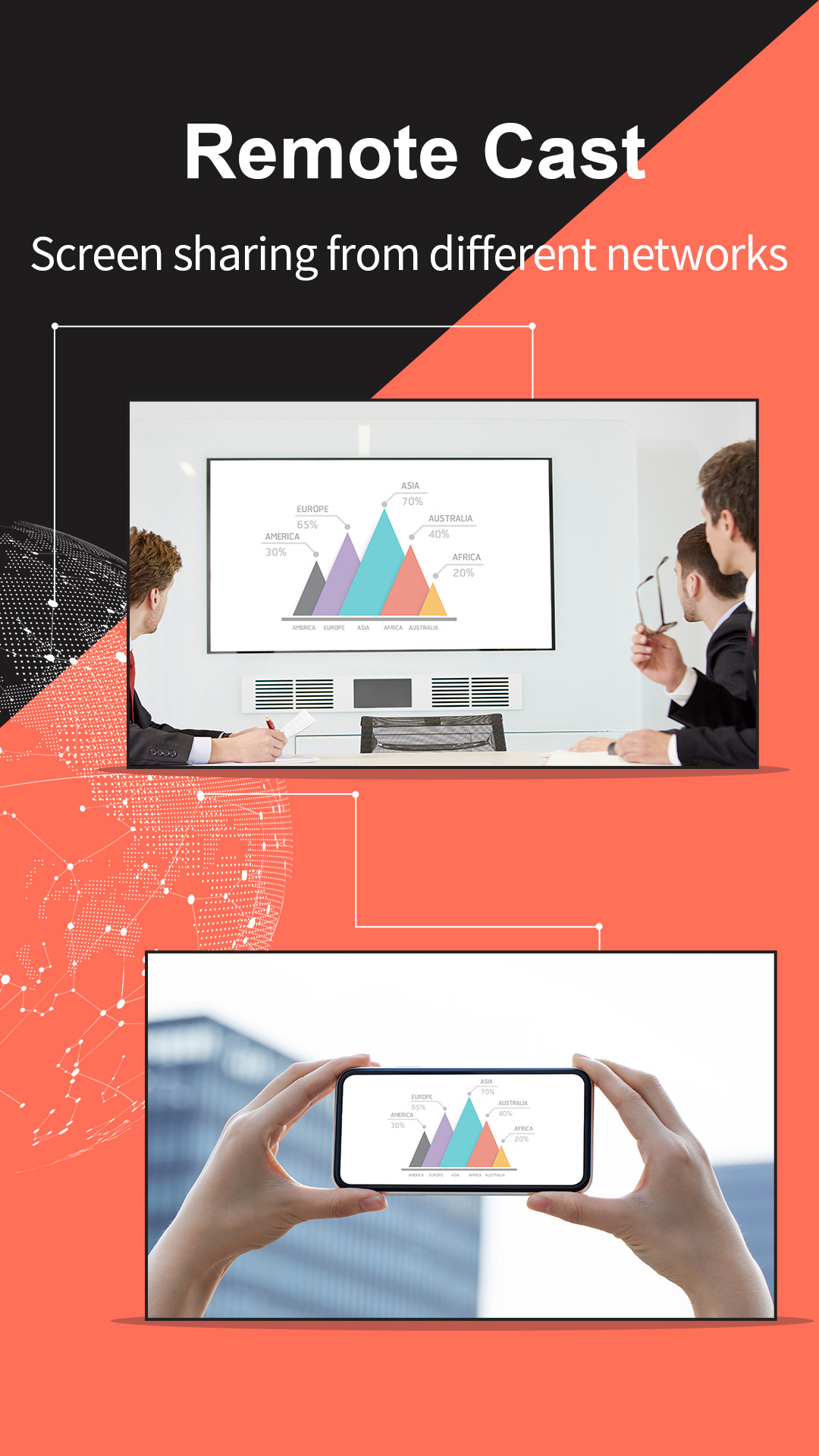
Store facing copy for LetsView references remote scenarios where two devices are not on the same Wi-Fi network or physical place yet still need a workable screen share.
Treat this as a convenience layer rather than a guarantee of desktop class remote administration. Throughput and input lag still follow physics and ISP uplink quality.
See remote troubleshooting stepsLive streaming and app casting
Public feature lists mention compatibility with live streaming platforms so creators can route mobile app output toward a PC side pipeline for overlays and recording. Actual compatibility changes as apps update their capture policies.
Plan a rehearsal: validate resolution, frame pacing, and whether the streaming app allows mirrored output in your region and account tier.
Open streaming best practices
Documents and teaching materials to large screens
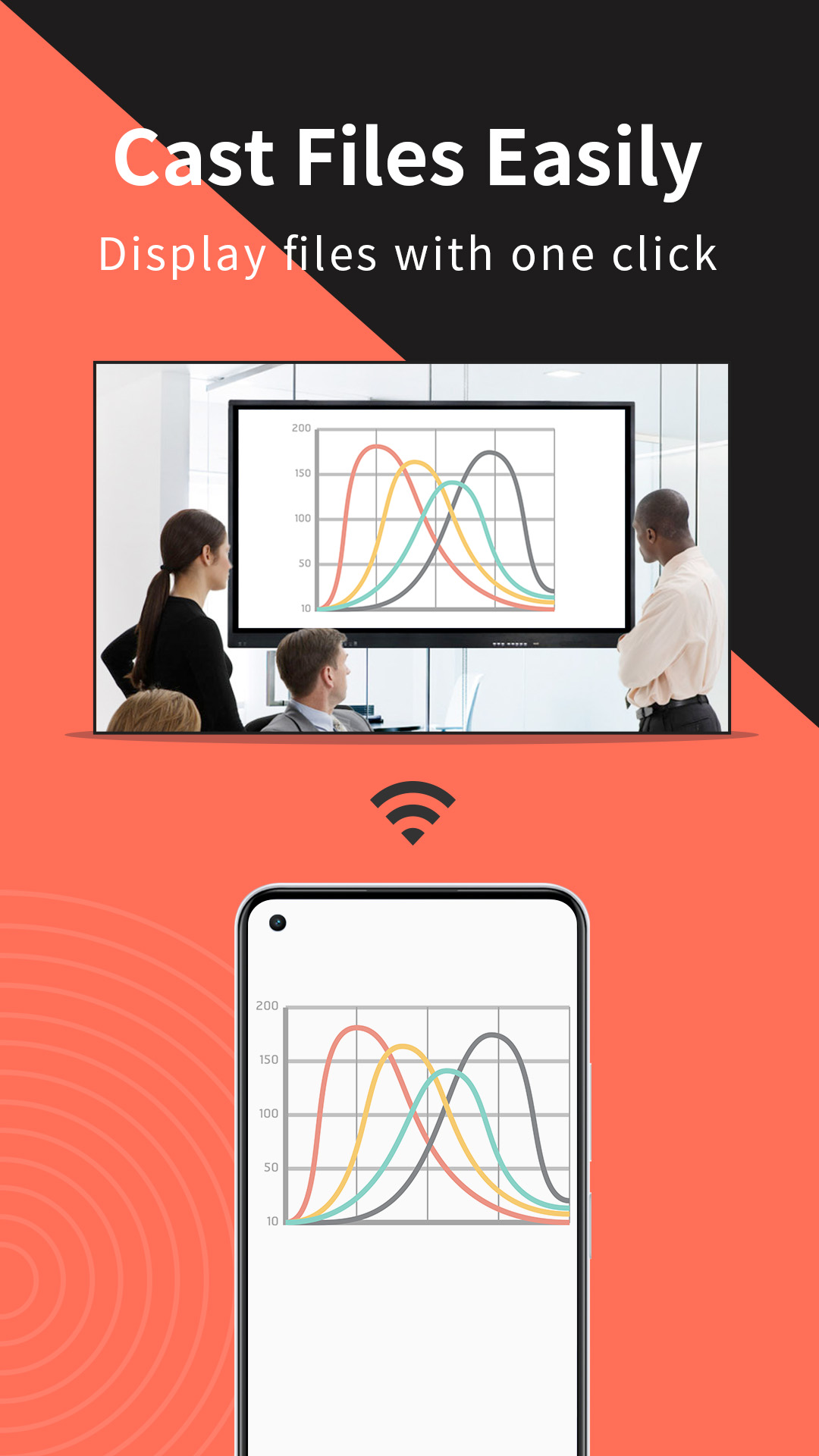
LetsView is positioned for educators who keep decks on a phone and want them on a PC, Mac class receiver, or smart TV without copying files through ad hoc USB chains mid lesson.
Pair this capability with your platform's presentation mode so mirrored pixels stay crisp and readable for students in the back row.
Classroom checklist
Control PC from phone during reverse mirroring
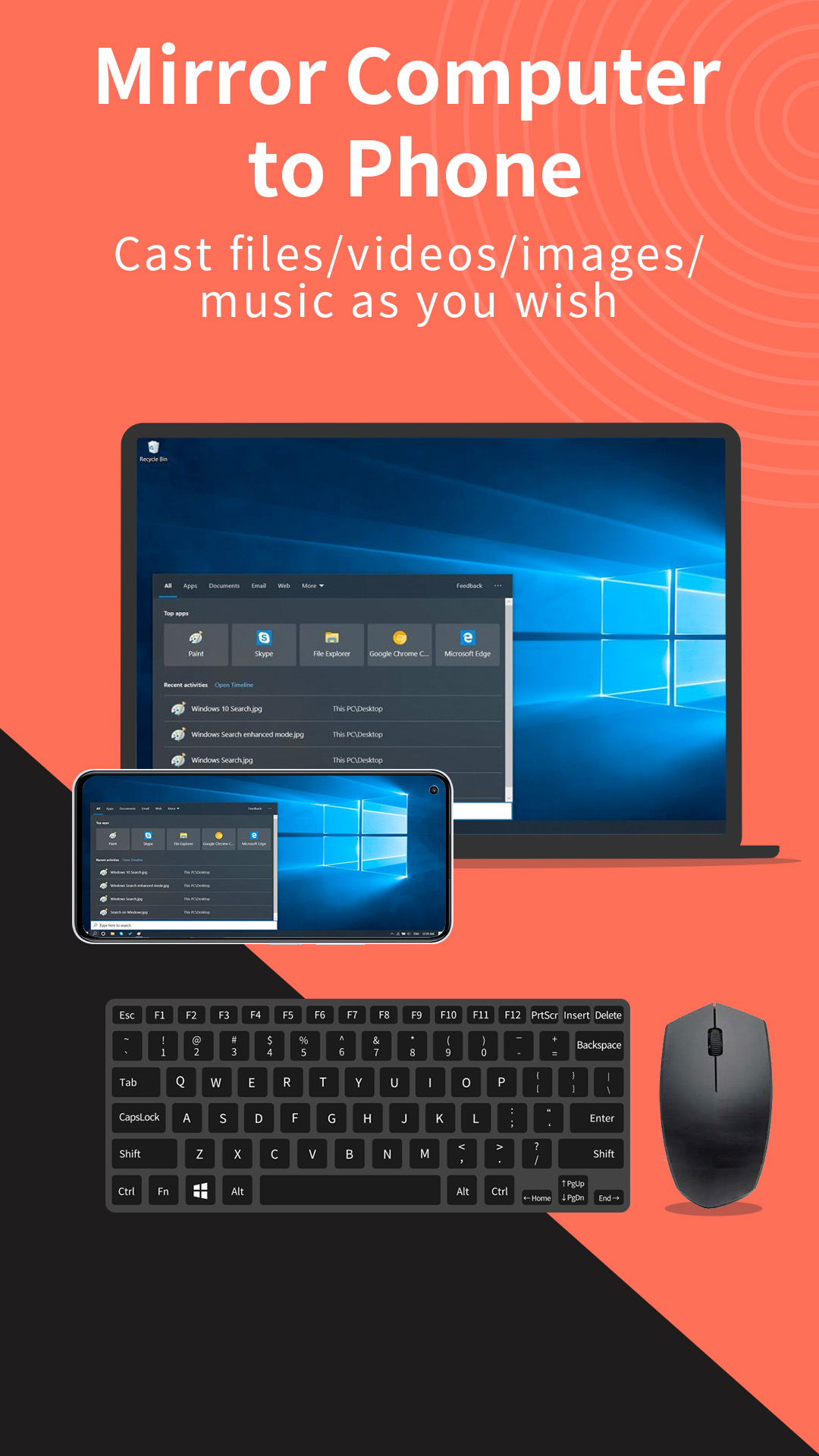
When a computer screen is mirrored to Android phones or tablets, LetsView describes touch based control so you can drive the desktop with fingers instead of a separate mouse. This is useful for couch side media PCs and kiosk style demos.
Expect differences between phone aspect ratios and a widescreen PC layout. Use full screen and scaling options inside the client when available.
Touch mapping tips
Capture, recording, and session memory
Community writeups often call out screenshots and recordings taken while mirroring, which helps QA teams and trainers publish reproducible artifacts.
Always obtain consent before recording meetings or classroom activity. Some jurisdictions require explicit notice.
Review ethical usage expectationsWhiteboard, layout, and desktop integration
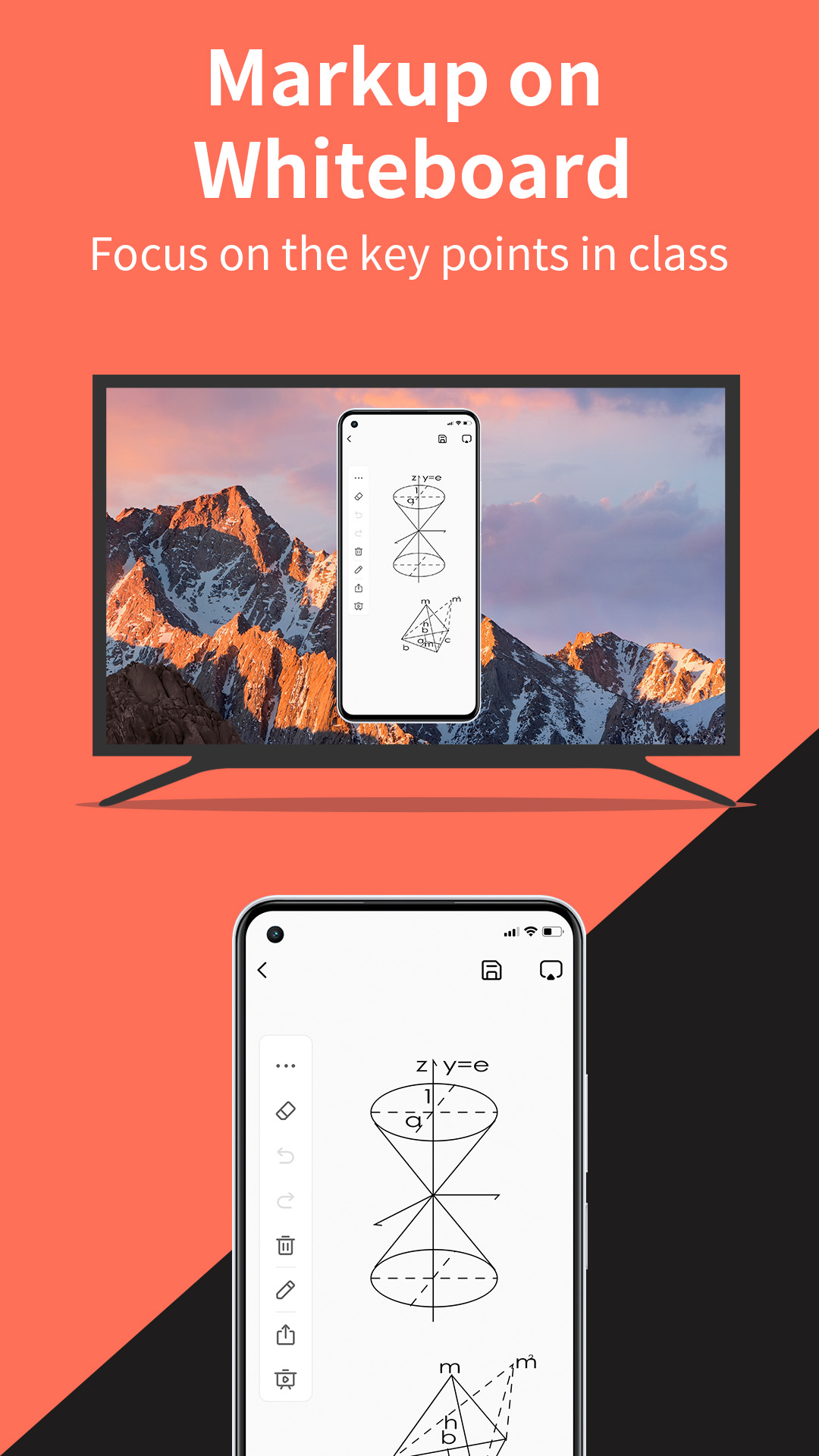
Mirrored sessions can include markup overlays, floating window behavior, full screen modes, and always on top presentation so reference material stays visible while you switch apps on the source device.
Desktop builds also benefit from configurable hotkeys for frequent actions, reducing mouse travel during demos.
Display, audio, and quality settings
Mirroring utilities expose controls for bitrate, resolution targets, capture devices, and audio sinks. The exact names vary by release, but the goal is the same: trade visual fidelity against Wi-Fi stability.
If you see stutter, lower resolution before chasing router replacements. If text looks soft, raise resolution only when signal strength supports it.
Quality troubleshooting